Import and sync Zvuk
Connect your Zvuk account once, and the bot downloads your likes, saved albums, and playlists into your library. Afterwards it checks Zvuk every few hours and brings in what you saved there since.
Connect your account
Section titled “Connect your account”You need an active Zvuk subscription and enough room in your personal library.
- Sign in at zvuk.com in a browser.
- Open the profile endpoint in that signed-in browser and copy the
tokenfield. - In the bot, open Import from a service > Zvuk > Connect.
- Send the token when asked. The bot deletes your message and stores the token encrypted.
If the profile page has no usable token or Zvuk rejects it, sign in again and retry.
Start the first import
Section titled “Start the first import”Choose Import to see the plan: saved tracks, tracks missing from your library, an estimated download size, and available quota. Choose Start the import to begin.
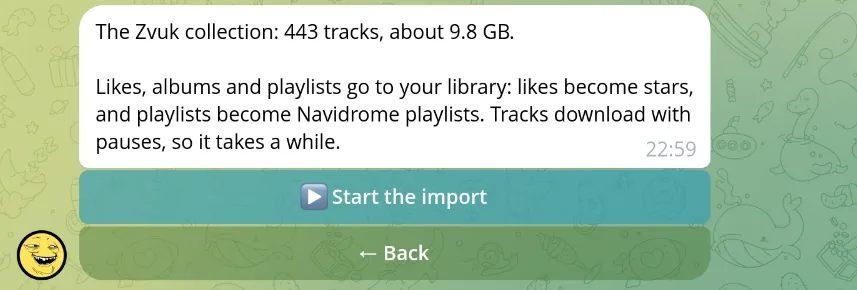
The bot downloads liked tracks, saved album tracks, and playlist tracks. Likes become stars in Navidrome. Playlists keep their names and track order. Available FLAC is preferred; otherwise the provider uses its high-quality MP3 stream.
Downloads include pauses and are limited per account, so a large collection takes time. View Import progress to see results.
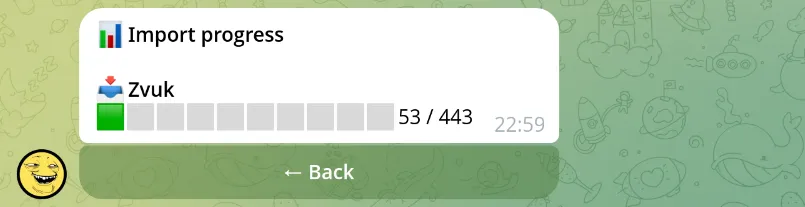
Navidrome must index downloaded files before stars and playlists can be applied; a playlist may be incomplete while that happens.
A track already in your personal library, or in an existing library you can access, may be skipped as a duplicate. The existing Navidrome track is then used for stars and playlists.
What sync does
Section titled “What sync does”Automatic sync begins after the first import. Connecting a token alone does not start it. Its default interval is six hours. It runs from Zvuk to Navidrome; changes you make in Navidrome are not sent back.
| Change in Zvuk | Result in Navidrome |
|---|---|
| Like a new track or save more collection music | Missing tracks are downloaded; likes become stars |
| Remove a like | The star is removed; downloaded audio stays |
| Add or remove playlist tracks | The mirrored playlist’s track list is updated; downloaded audio stays |
| Rename a playlist | The existing Navidrome playlist keeps its current name |
| Delete a playlist | Its Navidrome copy is not deleted |
The initial likes keep their order. A new star may wait until earlier tracks finish downloading and Navidrome scans them.
Missing tracks and full quotas
Section titled “Missing tracks and full quotas”Tracks unavailable from Zvuk can be skipped. Other downloads can fail or run out of personal quota. Review the import summary and confirm that important albums and playlists play.
If the administrator increases your quota, a later sync retries tracks that did not fit. A copied playlist cannot include a track until Navidrome has indexed a usable file.
Disconnect or reconnect
Section titled “Disconnect or reconnect”Choose Disconnect on the Zvuk screen to delete the saved token and stop new imports from that connection. Downloaded files remain. Saved collection state is retained so the connection can continue when you reconnect.
If the token stops working, the bot notifies you. Use Connect again and provide a fresh token.
The integration uses Zvuk’s unofficial web API, so a change on their side can break connecting, downloads, or sync. See troubleshooting if reconnecting does not resolve the issue.